Before You Start
-
WWindows 10 or 11
-
$Claude Pro or Team subscription
1
Install Node.js
About 2 minutes
Node.js is a free program that lets Claude Code run on your computer. Think of it as the "engine" that powers Claude Code.
Installing Node.js on Windows

Follow these steps:
- Open your web browser and search for "Node js" on Google
- Click on the official website (nodejs.org)
- Click the green "LTS" button to download (this is the stable version)
- Run the downloaded file (it ends with .msi)
- Click "Next" through the setup wizard
- Accept the license agreement
- Keep the default installation folder
- Important: Do NOT check "Automatically install necessary tools" - leave it blank
- Click "Install" and wait for it to finish
- Click "Finish"
How do I know it worked?
Open Command Prompt and type node --version. If you see a number (like v24.12.0), you're good!
2
Install Claude Code
About 1 minute
Now we'll install Claude Code itself using a simple command in the Command Prompt.
Installing Claude Code via Command Prompt
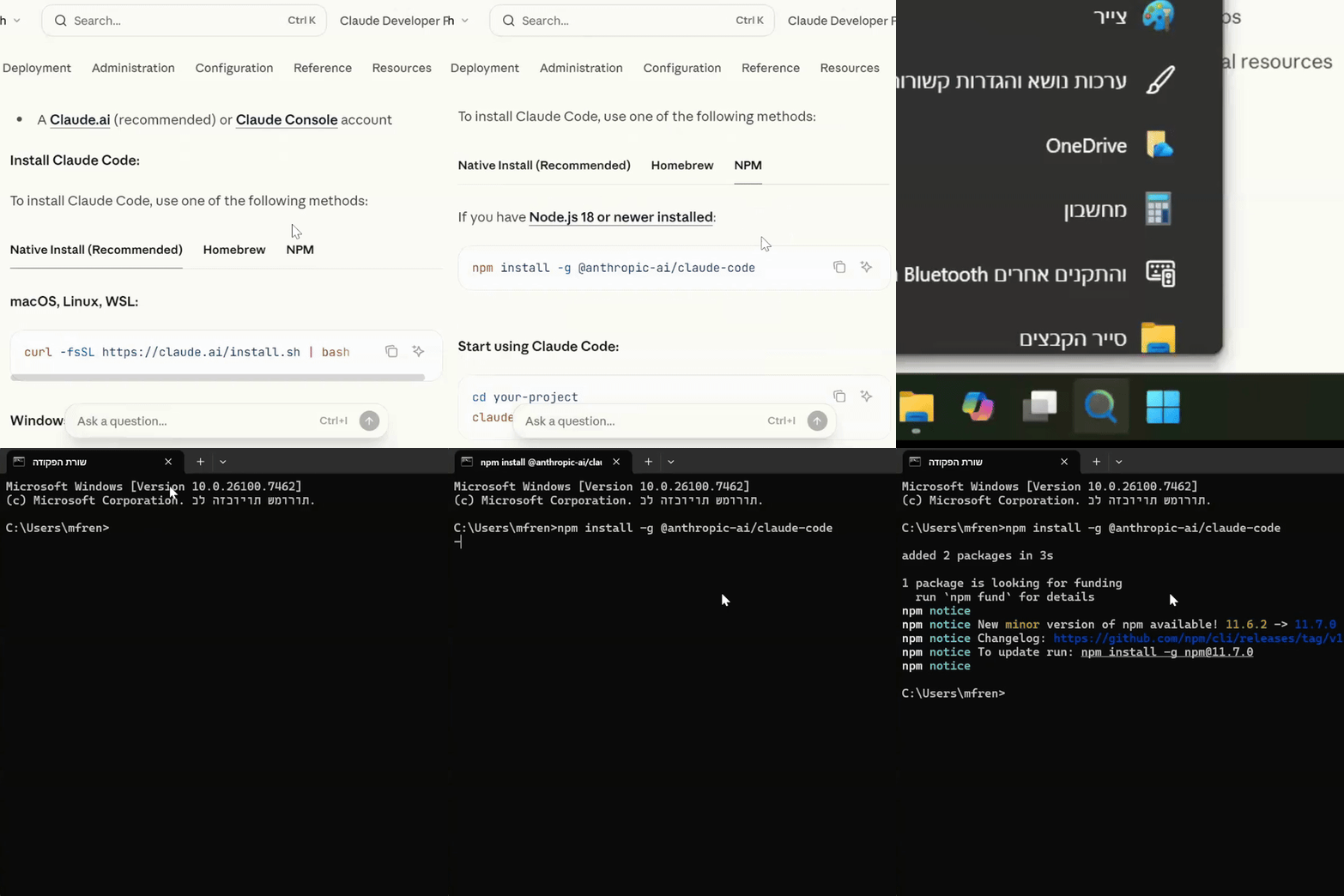
Follow these steps:
- Click the Start menu (Windows icon)
- Type "cmd" or "Command Prompt"
- Click on Command Prompt to open it
- Copy and paste this command, then press Enter:
npm install -g @anthropic-ai/claude-code
What does this command do?
It tells Node.js to download and install Claude Code from the internet. The -g means "install globally" so you can use it anywhere.
3
Install Git
About 3 minutes
Git is a free tool that helps track changes to your files. Claude Code needs it to work properly.
Downloading and Installing Git
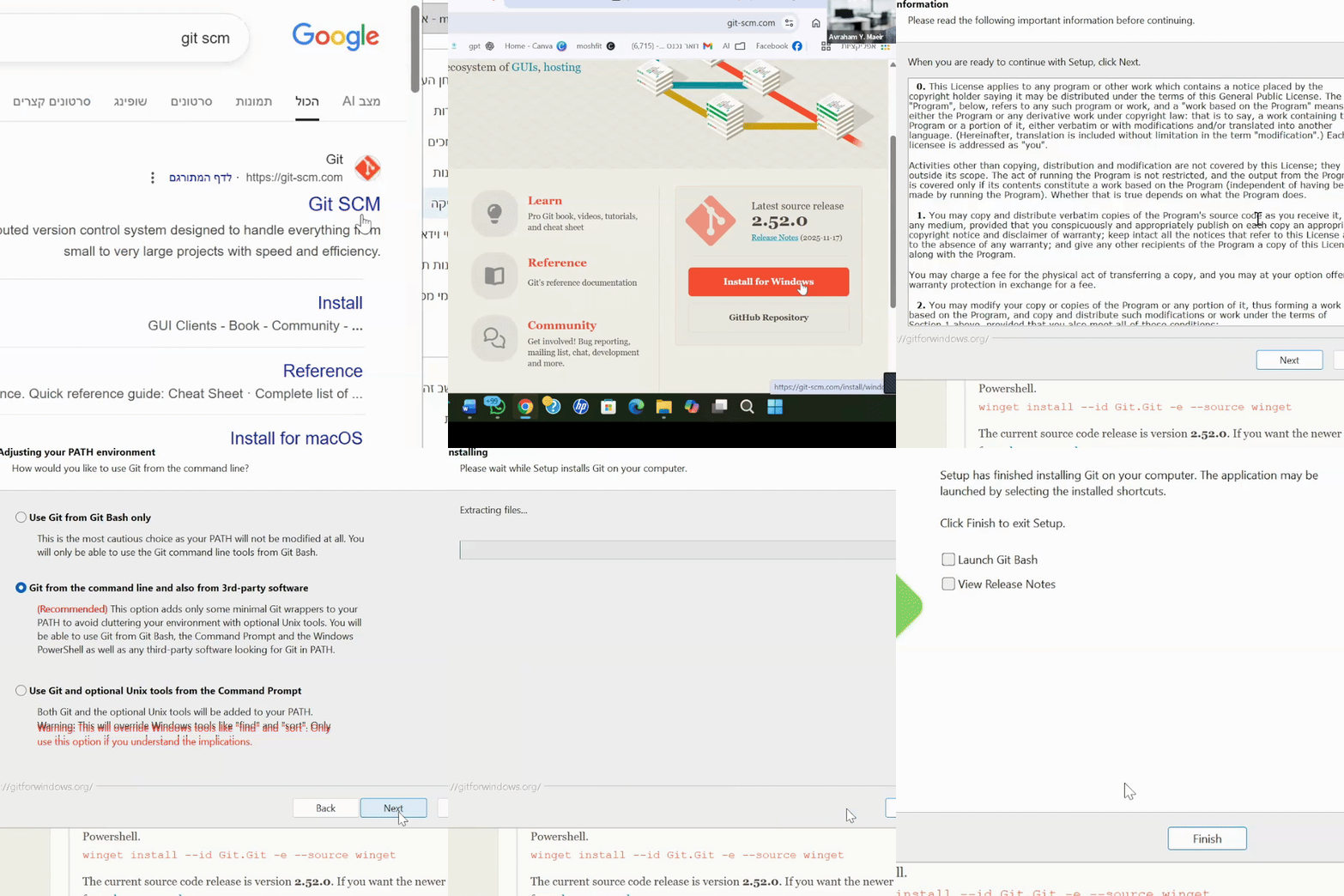
Follow these steps:
- Search for "git scm" on Google
- Go to the official Git website (git-scm.com)
- Click "Download for Windows"
- Choose the "64-bit Git for Windows Setup" (Standalone Installer)
- Run the downloaded installer
- Click "Next" through most options (the defaults are fine)
Don't worry about the options!
Git's installer has many screens with technical options. Just click "Next" and keep the default selections - they work perfectly for Claude Code.
Quick reference for Git options (just click Next for these):
- Editor: Vim (default) - this is fine
- Default branch: Let Git decide
- PATH environment: "Git from command line and 3rd-party software" (Recommended)
- SSH: Use bundled OpenSSH
- HTTPS: Use the native Windows Secure Channel
- Line endings: Checkout Windows-style, commit Unix-style
- Terminal: Use MinTTY
- Finally, click "Install"
4
Set Up & Log In
About 3 minutes
Time to start Claude Code and connect it to your Claude account. This is where the magic happens!
Starting Claude Code and Logging In
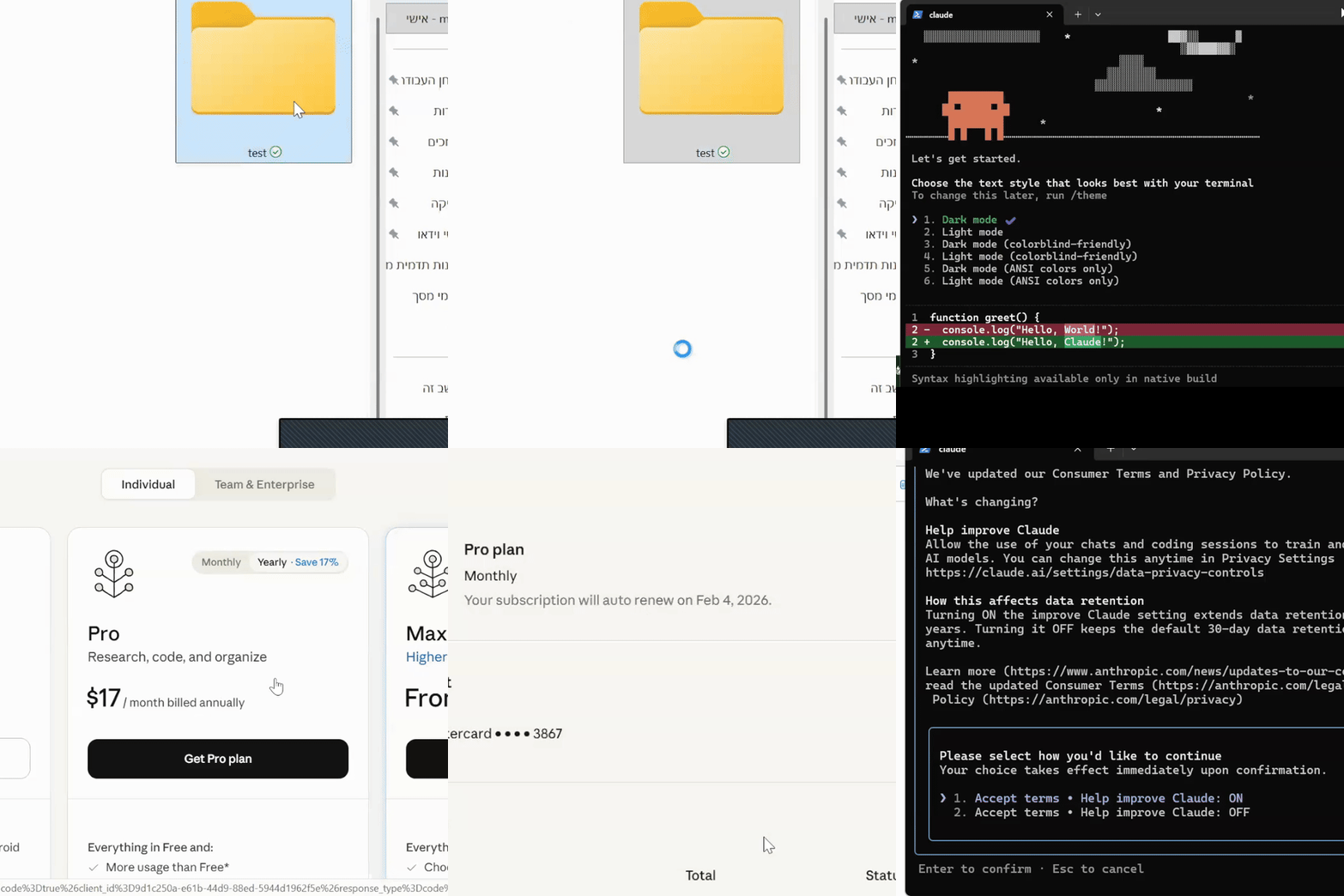
Follow these steps:
- Create a new folder for your project (e.g., right-click on Desktop → New → Folder → name it "test")
- Open PowerShell or Command Prompt
- Navigate to your folder by typing
cd Desktop\test(or your folder path) - Type claude and press Enter
- Use arrow keys to select a theme (like Dark mode) and press Enter
- Select "Claude account with subscription"
- A browser window will open - log in to your Claude account
- Click "Authorize" to connect Claude Code
- You'll see "You're all set up" - you can close the browser
- Back in the terminal, read the privacy options and press Enter to accept
Need a subscription?
You need a Claude Pro or Team subscription. If you don't have one, the browser will prompt you to upgrade. Plans start at $20/month.
5
Privacy Settings OPTIONAL
About 1 minute
By default, your conversations may be used to improve Claude. If you prefer more privacy, you can change this setting.
Managing Privacy Settings
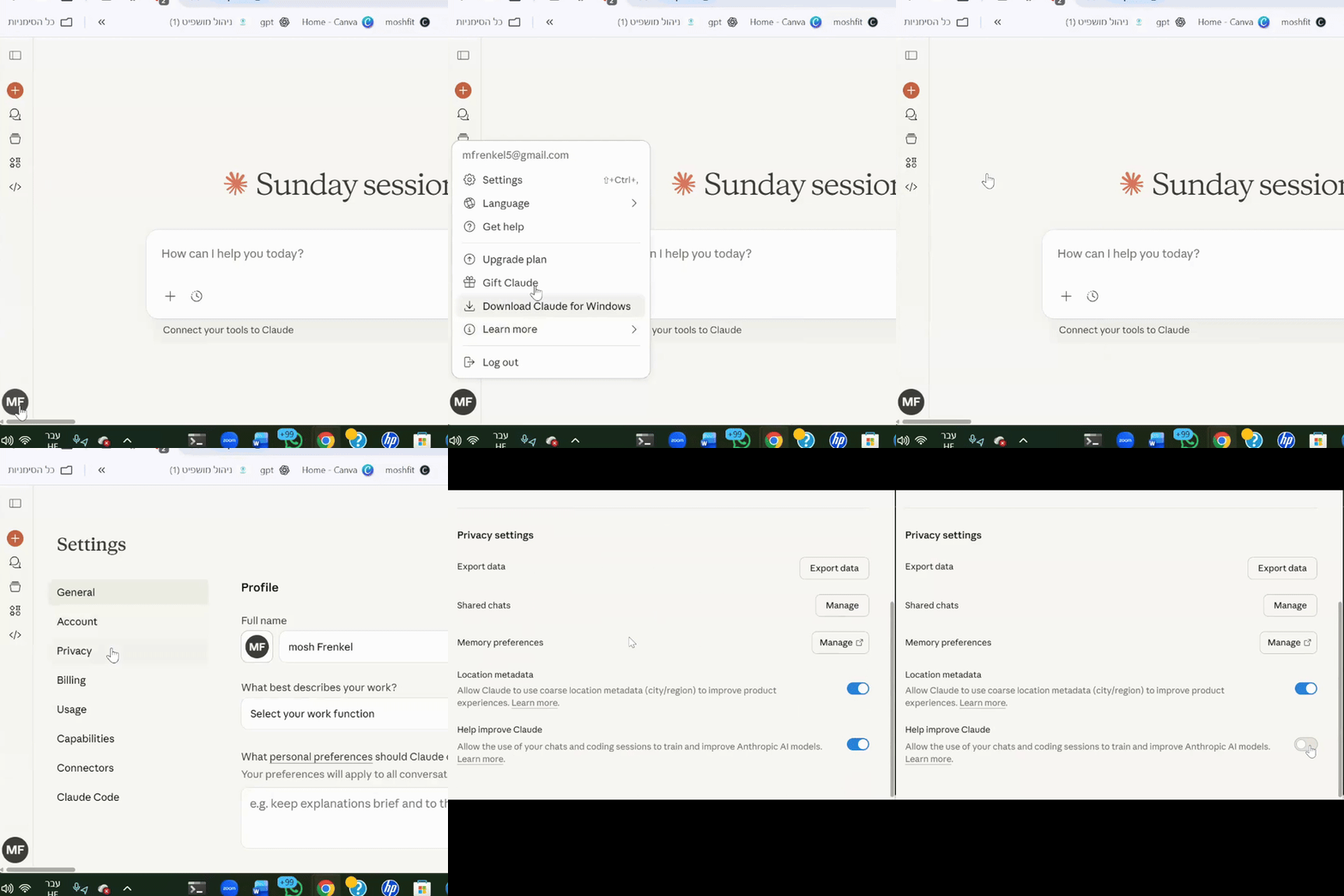
To opt out of training data:
- Open your web browser and go to claude.ai
- Click your profile icon in the top right
- Click "Settings"
- Go to the "Privacy" tab
- Toggle OFF the "Help improve Claude" option
What does this mean?
When "Help improve Claude" is ON, your conversations may be reviewed by Anthropic to make Claude better. Turning it OFF means your data stays private and won't be used for training.